




24/7 Support
Fast, professional support




















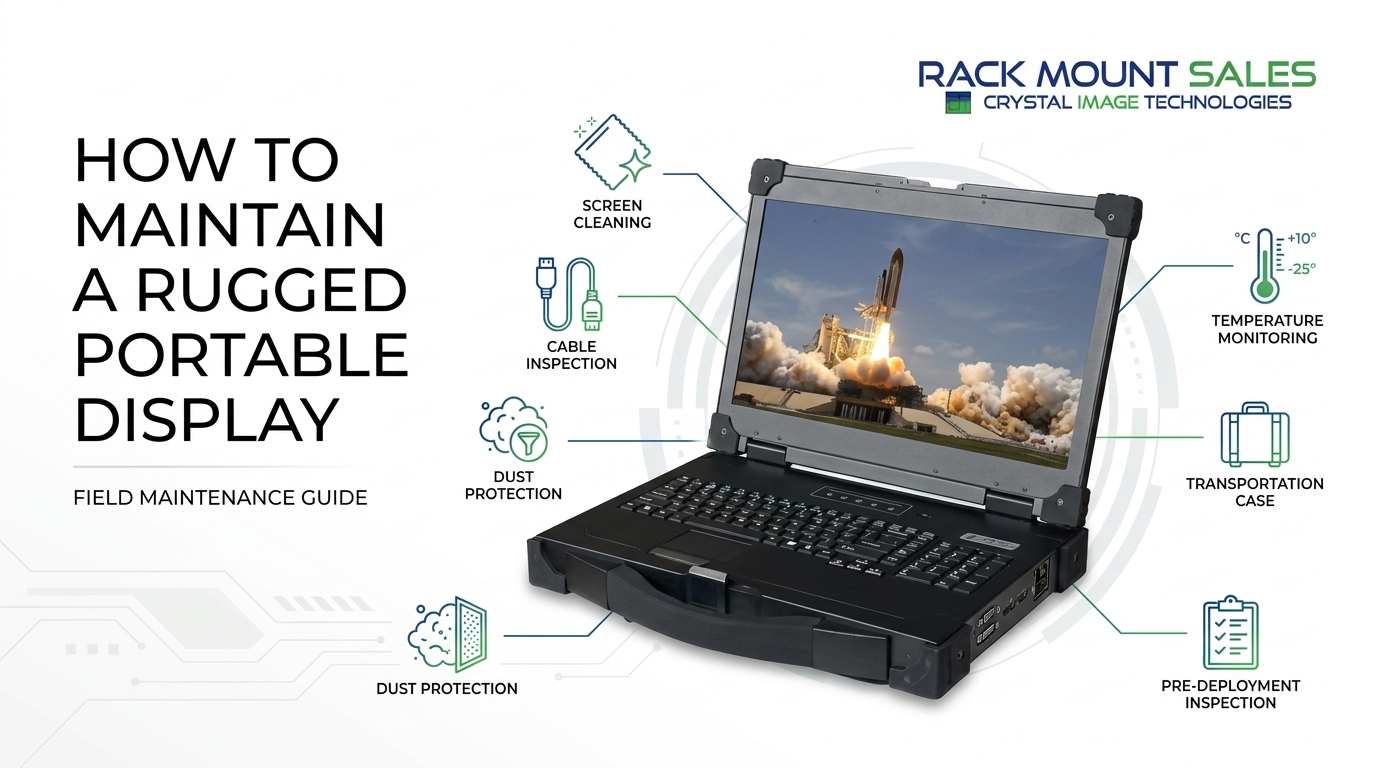
Rugged portable displays are built for demanding work, but rugged construction does not eliminate the need for regular care. Field equipment can encounter dust, moisture, temperature changes, vibration, frequent transportation, and repeated cable connections. Over time, these conditions can affect the screen, connectors, enclosure, and other components.
A simple maintenance routine helps identify problems before they become deployment issues. Regular inspection, careful cleaning, cable checks, proper transportation, and basic functional testing can keep a rugged portable display ready for field use.
This guide explains how to maintain a rugged portable display before, during, and after field deployment.
A rugged portable display is designed to tolerate demanding environments, but its operating limits still matter. Understanding how these displays are designed and what specifications matter can also help when working with rugged portable displays in field environments. The display may be exposed to dust, moisture, heat, cold, vibration, and physical handling during transportation and fieldwork.
Maintenance helps you:
Maintenance does not mean opening or modifying the internal electronics. In most field situations, routine care should focus on inspection, cleaning, connections, transportation, and functional checks.
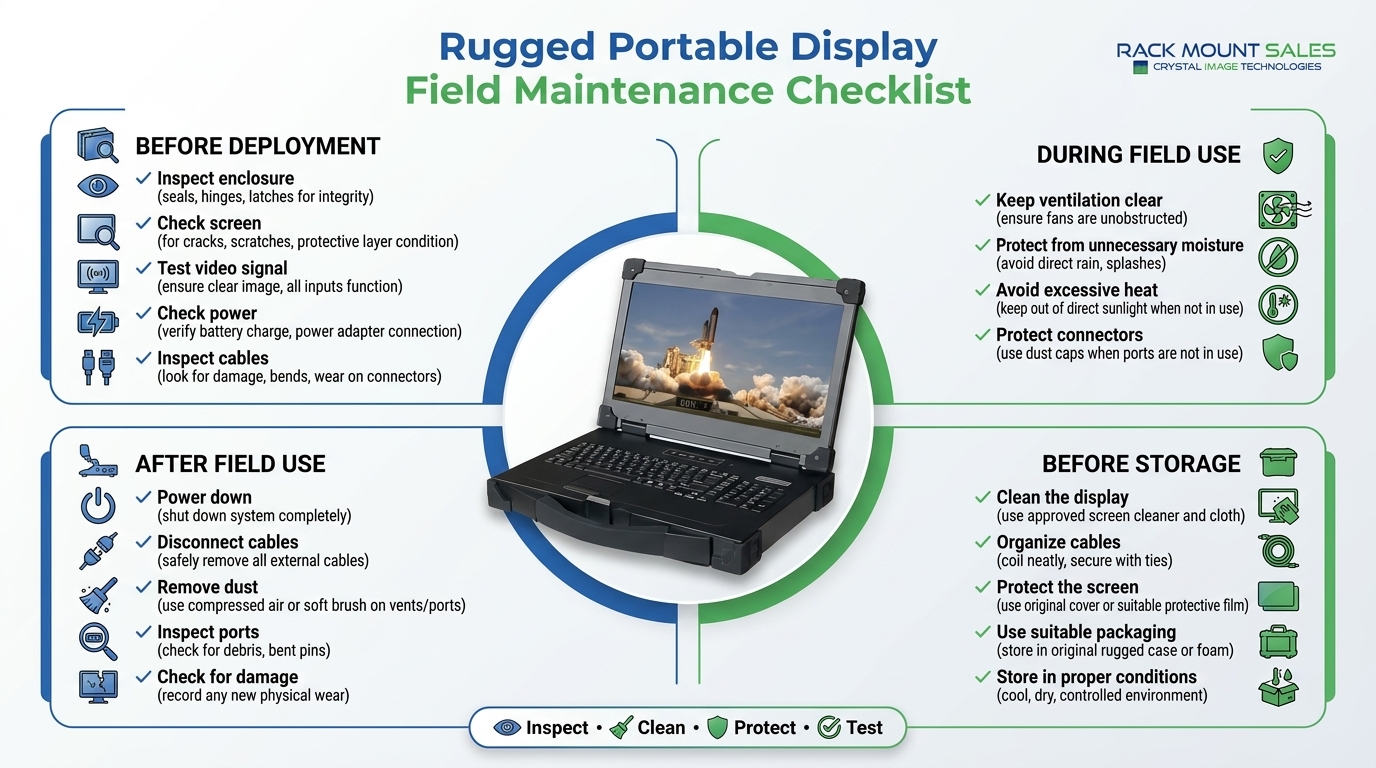
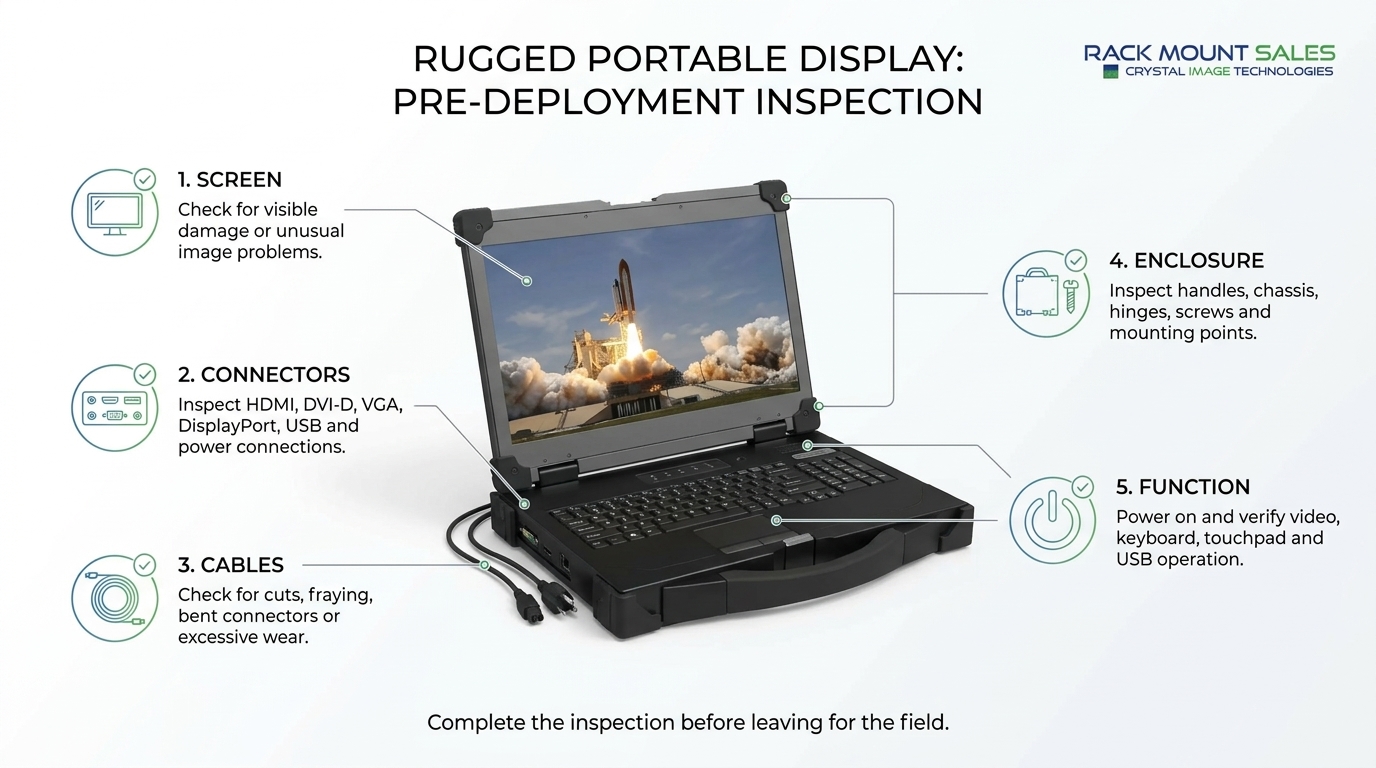
A visual inspection is one of the simplest maintenance steps and should be performed before deployment and after returning from the field.
Start with the exterior enclosure. Look for dents, cracks, loose hardware, damaged handles, or other signs of physical impact. Pay particular attention to areas that are frequently handled or exposed during transportation.
Next, inspect the display panel itself. Check for visible damage, unusual marks, cracked surfaces, or changes in image quality.
Also inspect:
If you notice physical damage, do not assume that the unit is safe to continue using. Follow the manufacturer's inspection and service recommendations before returning the equipment to field operation.
Dust and fingerprints can make a display harder to read, particularly when the screen is being used outdoors or in bright working environments.
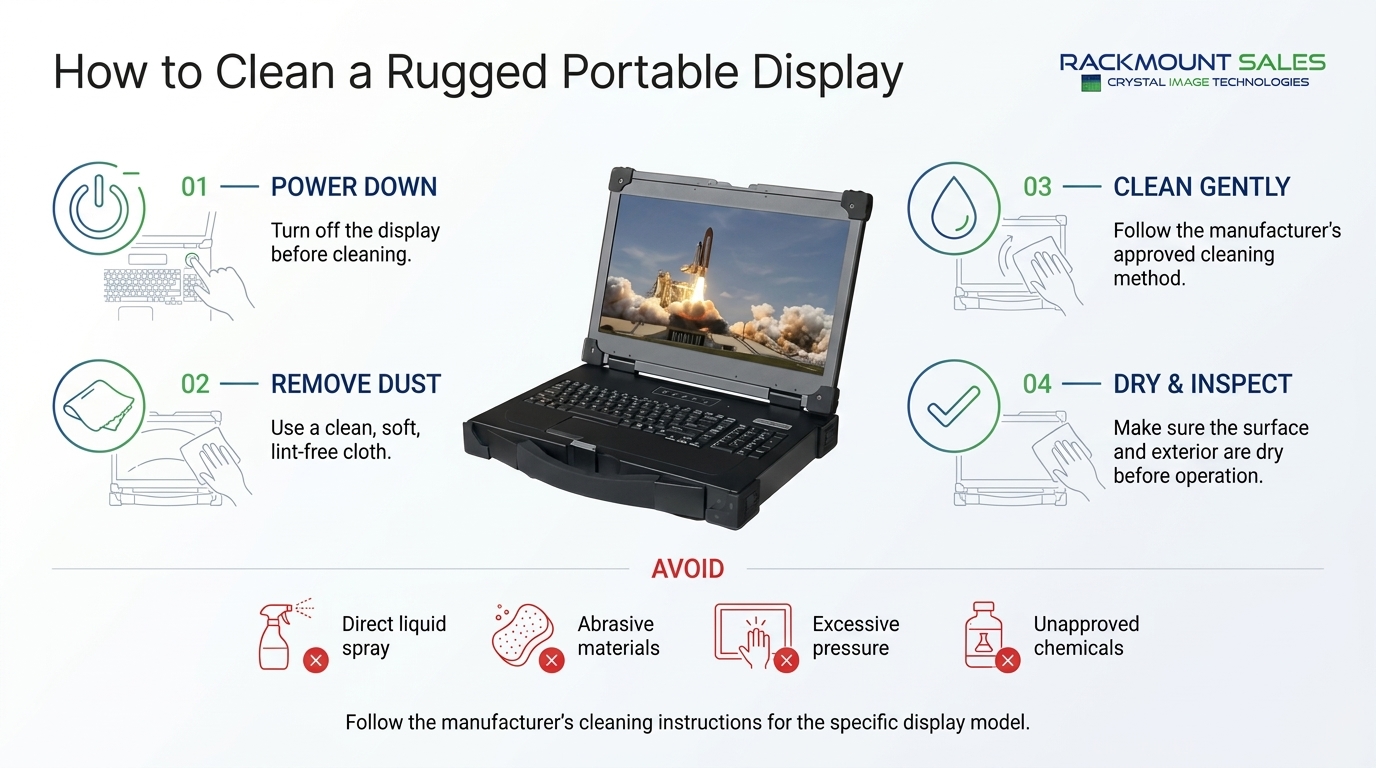
Before cleaning, power down the display and disconnect it from its power source when appropriate.
Use a clean, soft, lint-free cloth to remove dust and fingerprints. If the manufacturer permits a cleaning solution, apply it according to the manufacturer's instructions.
Avoid spraying liquid directly onto the LCD panel. Liquid can migrate into openings around the display and connectors.
Do not use:
For stubborn marks, use the cleaning method specified by the display manufacturer rather than increasing pressure or using a stronger chemical.
There is no single schedule for every field environment. A display used in a clean indoor workspace may need less frequent cleaning than one used around dust, machinery, or outdoor work areas.
A practical approach is to clean the display whenever visible dirt or fingerprints affect readability and to include screen cleaning in the post-deployment inspection.
Connectors are critical to a portable display because field systems often depend on external computers, video sources, keyboards, mice, and power equipment.
Dust and debris around connectors can interfere with reliable connections.
Inspect each port before connecting a cable. Look for visible dust, debris, bent contacts, corrosion, or physical damage.
Common connections may include:
Never force a connector into a port. If a cable does not fit normally, check the connector orientation and inspect both components for damage.
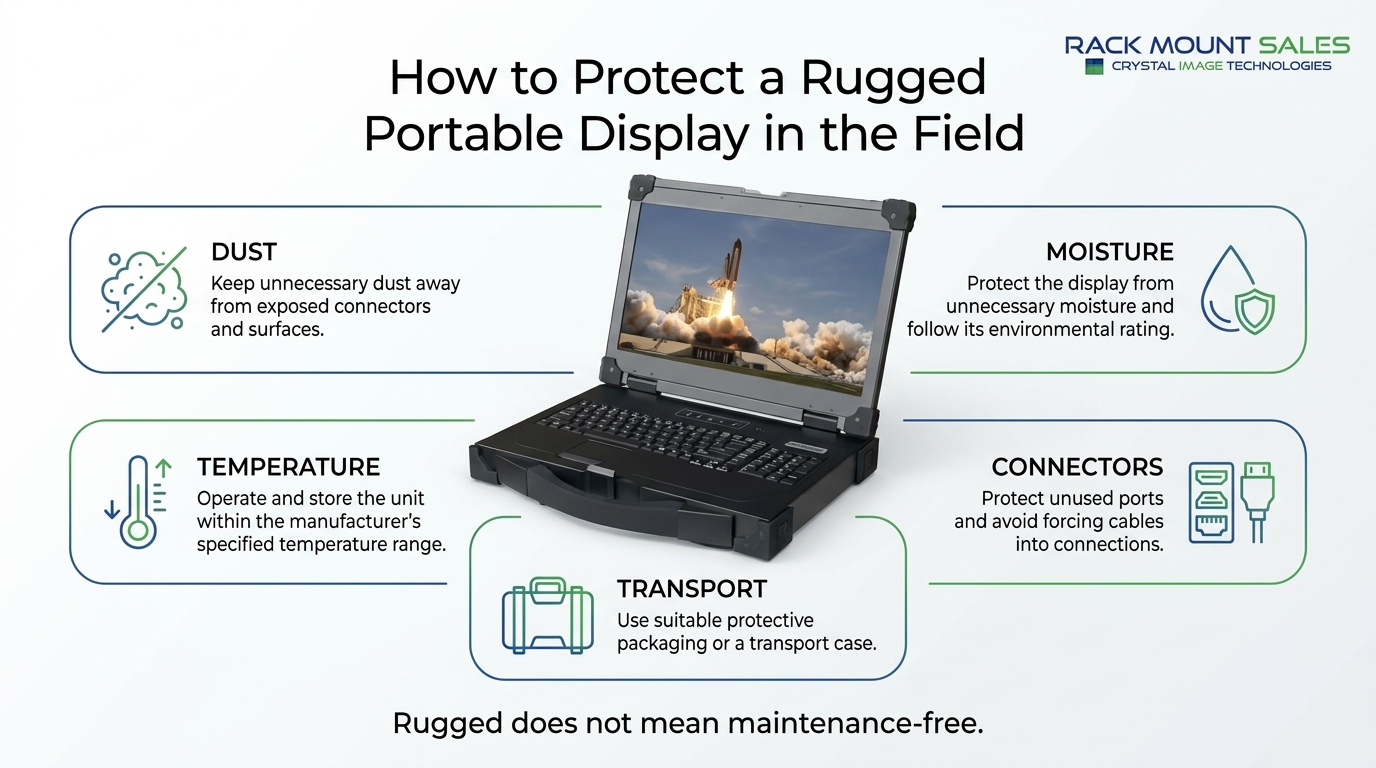
When the display is not being used, protective covers should remain in place if the equipment is designed with them.
Field environments can expose equipment to airborne dust, dirt, humidity, and occasional moisture.
For a broader look at display requirements in demanding conditions, see our guide to rugged displays for harsh environments.
When possible:
If the display becomes wet, follow the manufacturer's instructions before powering it on. Do not assume that a rugged enclosure makes every form of liquid exposure harmless.
A damaged cable can create problems that look like display or computer failures.
Before taking a rugged portable display into the field, inspect each cable for:
Connect the display to the intended system and verify the signal before leaving for deployment.
For critical field systems, carrying a compatible spare video or power cable can also reduce downtime if a cable fails during operation.
Temperature is an important consideration for any electronic display used outside a controlled office environment.
A rugged portable display may be designed for a wider operating range than a standard consumer monitor, but every model has defined operating and storage limits.
Do not assume that rugged equipment can operate indefinitely in extreme heat or cold.
When moving a display between significantly different temperatures, allow the equipment to acclimate according to the manufacturer's guidance. Sudden temperature changes can create condensation, which can be harmful to electronics.
During operation:
Temperature specifications should always come from the documentation for the specific display model.
The enclosure protects the internal components, so physical condition matters.
Check the chassis for:
For displays with an aluminum or metal chassis, inspect corners and handles carefully because these areas can experience repeated impact during transportation.
Do not attempt to straighten, drill, modify, or repair structural components unless the manufacturer specifically permits the work.
A damaged enclosure may affect more than appearance. It can potentially compromise the protection provided by the original design.
Transportation is one of the easiest ways to damage field equipment.
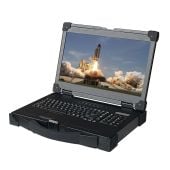
A rugged portable display should still be transported carefully, particularly when it contains an LCD panel, integrated keyboard, touchpad, connectors, and other components.
Before transportation:
Do not use the display's rugged construction as a reason to treat it like impact-proof equipment. Ruggedization improves resistance to demanding conditions, but unnecessary impacts should still be avoided.
If the display is part of a mobile computing system, proper transportation and setup become even more important. See our guide to using a rugged monitor for mobile work setups for additional considerations.
A quick functional test can prevent a simple problem from becoming a field failure.
Connect the display to the intended computer or video source and verify:
For systems that use several video interfaces, test the actual connection that will be used during deployment rather than assuming every input will behave identically.
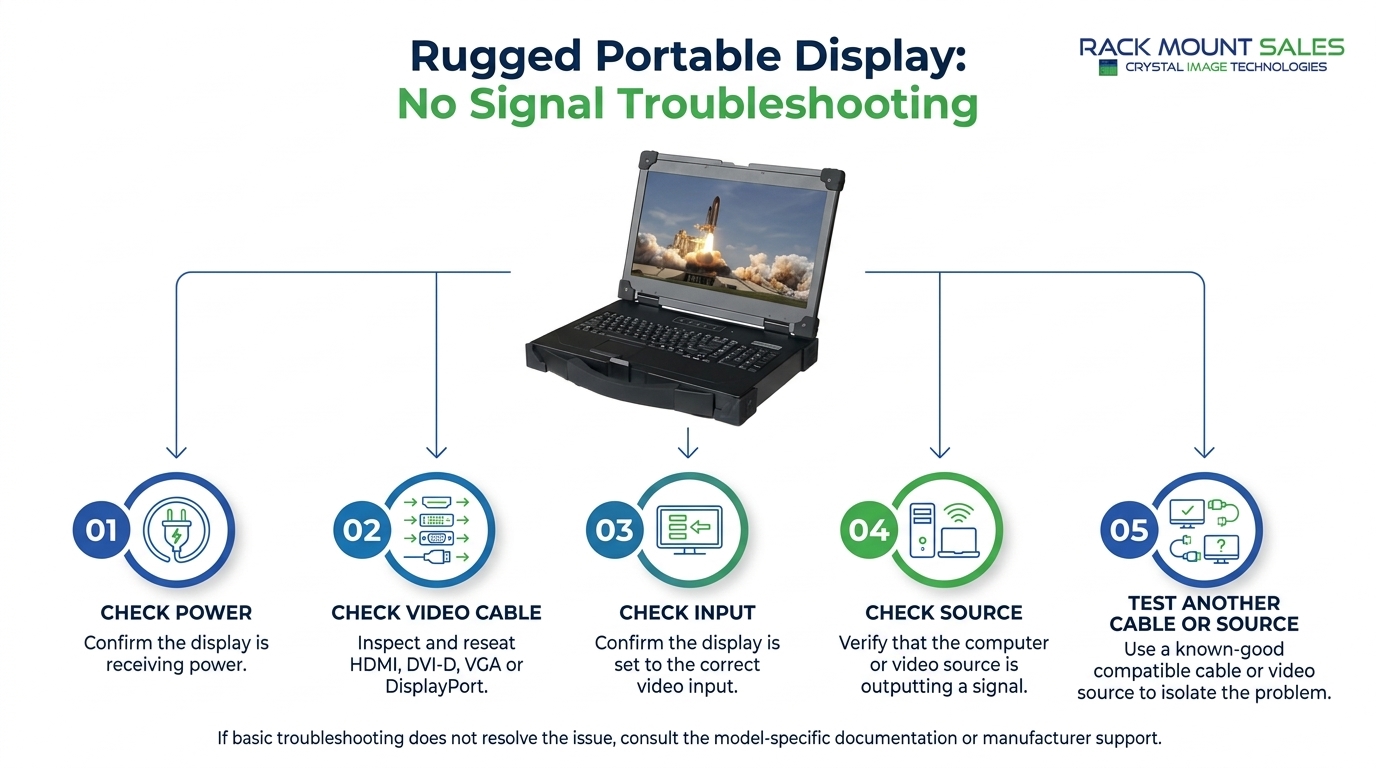
Basic troubleshooting can often identify whether a problem is related to power, cabling, configuration, or the display itself.
|
Problem |
Possible Cause |
Basic Check |
|
No image |
Power or video connection |
Check power and video cables |
|
“No signal” message |
Incorrect input or disconnected source |
Confirm the selected input and source output |
|
Flickering image |
Loose or damaged cable |
Reseat or replace the cable |
|
Image appears distorted |
Resolution or signal issue |
Check the computer's display settings |
|
USB device not detected |
Loose connection or USB issue |
Reconnect and test another device |
|
Keyboard not responding |
USB or hardware connection |
Check the connection and test again |
|
Screen is difficult to read |
Brightness or lighting conditions |
Adjust display brightness and environment |
|
Display shuts down unexpectedly |
Power or environmental issue |
Check power source and operating conditions |
If basic checks do not resolve the problem, consult the model-specific manual or manufacturer support documentation before opening the unit or attempting internal repairs.
A consistent maintenance schedule makes inspections easier.
Perform a more detailed inspection of the enclosure, mounting hardware, connectors, cables, and display operation. The interval should depend on how frequently the equipment is deployed and the conditions in which it operates.
Use this checklist before sending a display into the field:
Physical condition
Connections
Function
Environment
Regular maintenance involves inspecting the enclosure and screen, cleaning the LCD with an appropriate method, checking cables and connectors, protecting the unit from unnecessary dust and moisture, and testing its functions before deployment.
Power down the display and use a soft, lint-free cloth. Follow the manufacturer's cleaning instructions for any approved cleaning solution, and never spray liquid directly onto the LCD panel or connectors.
That depends on the specific model and its environmental rating. Rugged construction does not automatically mean waterproof operation. Always follow the manufacturer's published environmental specifications.
Store it in a clean, dry environment within the manufacturer's specified storage-temperature range. During transportation, use suitable protective packaging or a case and prevent heavy objects from pressing against the screen.
Perform a basic inspection before and after field deployment. More detailed inspections should be scheduled according to deployment frequency, operating conditions, and the manufacturer's maintenance recommendations.
Check the power connection, selected video input, video cable, source computer, and output settings. If possible, test the display with a known-good cable or video source to isolate the problem.
No. Rugged construction is intended to improve durability and environmental resistance, but routine inspection and proper handling are still important for reliable field operation.
A rugged portable display is designed to support demanding work, but good maintenance starts with simple habits. Inspect the equipment before deployment, keep the screen and connectors clean, check cables, manage environmental conditions, transport the unit carefully, and test the complete system before heading into the field.
The most important rule is to follow the specific operating, cleaning, storage, and environmental instructions supplied with your display model. When a problem goes beyond routine external maintenance, use the manufacturer's service documentation rather than attempting an unauthorized internal repair.
With a consistent maintenance routine, field teams can identify small problems early and keep their portable display equipment prepared for its next deployment.

Industrial LCD displays are built for heavy-duty environments like factories, warehouses, and outdoor terminals. They can handle heat, dust, vibration, and long operating hours.
Militarydev411

Downtime costs more than most people expect. When LCD monitor drawers fail inside a rack, teams lose access, waste time, and risk bigger hardware issues. Proper care keeps LCD monitordev411
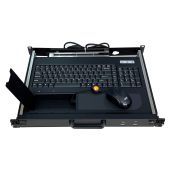
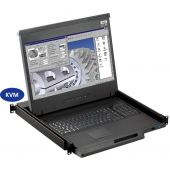
A rack mount monitor with KVM combines display, keyboard, and mouse into a single unit. This all-in-one design lets IT teams access multiple servers without juggling separate devices.dev411




We are so confident you will be satisfied with our products that we offer a 100% satisfaction guarantee


