




24/7 Support
Fast, professional support




















Setting up a 1U rack mount monitor the right way saves you time, protects your gear, and keeps your rack clean and easy to manage. Instead of guessing your way through, you can follow a clear, step-by-step process and get a professional-looking setup on the first try.
This guide walks you through everything that actually matters: checking compatibility, installing Rails, mounting the monitor, managing cables, and testing your server rack monitor setup so it works smoothly every day.
Before you touch a single screw, make sure your 1U rack mount monitor actually fits your rack. Skipping this step is how people end up with misaligned rails, blocked doors, or a monitor that just won’t sit right.
Here’s what to confirm:
Also, keep the user manual handy. It often shows exactly where to place rails and what hardware is included for your rack-mount monitor installation.

Installing a rack device is much easier when you have the right tools ready. You don’t need anything fancy, but you do need the basics.
You’ll usually need:
Many 1U rackmount LCD monitor kits include mounting rails and screws. However, cage nuts often come with the rack, not the monitor, so double-check that you have enough.
Safety reminders:
This is where you actually get the job done. Take it one step at a time, and you’ll have your 1U rack mount monitor installed cleanly and securely.
Don’t just pick a random spot.
Where you mount your rack monitor affects usability and comfort:
Also think about cable paths:
A few minutes of planning here will save you a lot of frustration later.
Most 1U rack mount monitors use slide rails or fixed brackets that attach to the front and rear rack posts.
Here’s how to install them:
If you feel resistance when sliding the monitor in later, it usually means the rails are slightly misaligned. Take your time and get this part right.
Now it’s time to lift and place the monitor.
If it’s heavy or you’re working in a tall rack, it’s safer to have two people for this step.
To mount the monitor:
If your model has a slide-out drawer, test the sliding motion gently now before attaching cables.

Next, you’ll make the connections that turn your installed hardware into a working server rack monitor setup.
Power:
Video and control:
Depending on your monitor and servers, you might use:
If your monitor includes a built-in KVM, connect the KVM cables to the appropriate servers or to a KVM switch. Keep everything labeled if you’re connecting multiple machines — it makes troubleshooting much easier.
Good cable management is not just about looks. It prevents disconnections, reduces strain on ports, and makes maintenance faster.
Simple cable management tips:
A clean cable layout also helps with airflow, making your cooling more efficient.

Now it’s time to see everything in action.
If something doesn’t work, don’t panic — the next sections cover common issues and how to fix them.
Once your rack-mount monitor installation is complete, a few simple decisions can make everyday use smoother and extend the life of your gear.
Even though 1U rack mount monitors are slim, they still take up space in your airflow path.
In shared or high-security environments, you may want to limit who can use the 1U rack mount monitor:
You can skip a lot of headaches by avoiding a few frequent mistakes:
Think of installation as a one-time job that affects years of use. A few extra minutes of care now will pay off later.
Even with a clean rack-mount monitor installation, small issues can show up after the first power-on. Most of them are easy to fix if you know what to look for.
If the screen turns on but shows “No Signal” or stays black:
If another device works fine on the same input and cable, the problem is likely with the server or graphics output.
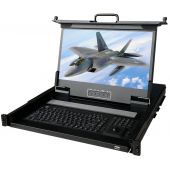
For a 1U rackmount LCD monitor with integrated keyboard and touchpad:
If input devices work in BIOS but not in the OS, you may be dealing with a driver or OS issue rather than a hardware problem.
If the 1U rack mount monitor sticks, jams, or tilts when you slide it:
Once fixed, the monitor should slide in and out in a straight and smooth motion.
Even a well-installed 1U rack mount monitor won’t last forever. Over time, displays age, ports become outdated, and your needs may change.
Here are some signs it might be time to upgrade:
Modern 1U rackmount LCD monitor models offer:
If you’re refreshing your data center or building a new rack, it can be smarter to move to newer models instead of trying to keep very old hardware alive.
For dependable, data-center-ready options, you can explore dedicated rack solutions from trusted providers. For example, you might visit Rackmount Sales to compare different 1U rack mount monitor designs and find one that matches your rack depth, port needs, and usage style.
A clean and secure 1U rack mount monitor setup comes down to three things: planning, proper mounting, and smart cable management.
When you start by checking rack compatibility and tools, you avoid surprises halfway through. Installing rails at the correct height, aligning the monitor carefully, and tightening hardware just enough gives you a stable, professional fit. Thoughtful routing of power and data cables keeps your rack safe, tidy, and easy to work in.
Once installed, regular testing and small checks — like verifying input sources, watching airflow, and keeping cables organized — help your rack mount monitor installation stay reliable for years. With a simple, step-by-step approach, even someone new to rack hardware can mount, connect, and use a 1U rack mount monitor with confidence.
For most setups, installing a 1U rack-mount monitor takes about 30–60 minutes. The time mainly depends on how tidy you want your cable management to be and whether your rails line up correctly on the first try. With proper planning and tools ready, the process is quick and straightforward.
In most cases, yes. Many 1U rackmount LCD monitor models come with their own rails or brackets designed for that exact unit. Using generic rails can cause alignment issues or poor support. Always check the hardware included in the box and follow the manufacturer’s mounting instructions.
A 1U rack mount monitor is usually made for standard 19-inch racks, which are common in data centers and network rooms. As long as your rack is standard width, has enough depth, and can support the weight, it should work. Some 2-post or shallow racks may need extra brackets or adapter kits.
The best height is usually around eye level when you stand in front of the rack. This reduces neck strain and makes it more comfortable to type on the built-in keyboard if your monitor is a console type. Many admins mount the monitor somewhere in the middle of the rack so it’s easy to reach without bending or stretching.
Good cable management starts with planning your cable paths. Route cables along the sides or rear cable channels, secure them with Velcro straps, and keep power and data lines separated when possible. Leave enough slack so your 1U rack mount monitor can slide out without pulling on connectors. A neat layout is easier to maintain and helps airflow stay smooth.

Industrial LCD displays are built for heavy-duty environments like factories, warehouses, and outdoor terminals. They can handle heat, dust, vibration, and long operating hours.
Militarydev411
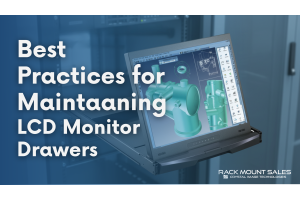
Downtime costs more than most people expect. When LCD monitor drawers fail inside a rack, teams lose access, waste time, and risk bigger hardware issues. Proper care keeps LCD monitordev411
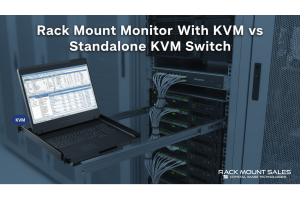
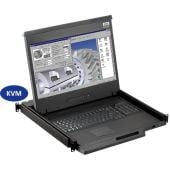
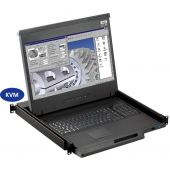
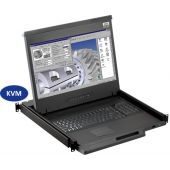
A rack mount monitor with KVM combines display, keyboard, and mouse into a single unit. This all-in-one design lets IT teams access multiple servers without juggling separate devices.dev411
We are so confident you will be satisfied with our products that we offer a 100% satisfaction guarantee


